
In this how‑to, we’ll show you how to easily make the macOS Dock appear and disappear automatically. This way, you make the most of your screen space and keep the Dock out of your way.
To automatically hide the macOS Dock, we’ll use an app called IntelliDock. With this app, your Dock hides itself whenever another window gets close.
Download IntelliDock from the website and drag the app file into the Applications folder in Finder. Have Homebrew installed? Then you can install IntelliDock from the terminal using brew install intellidock.
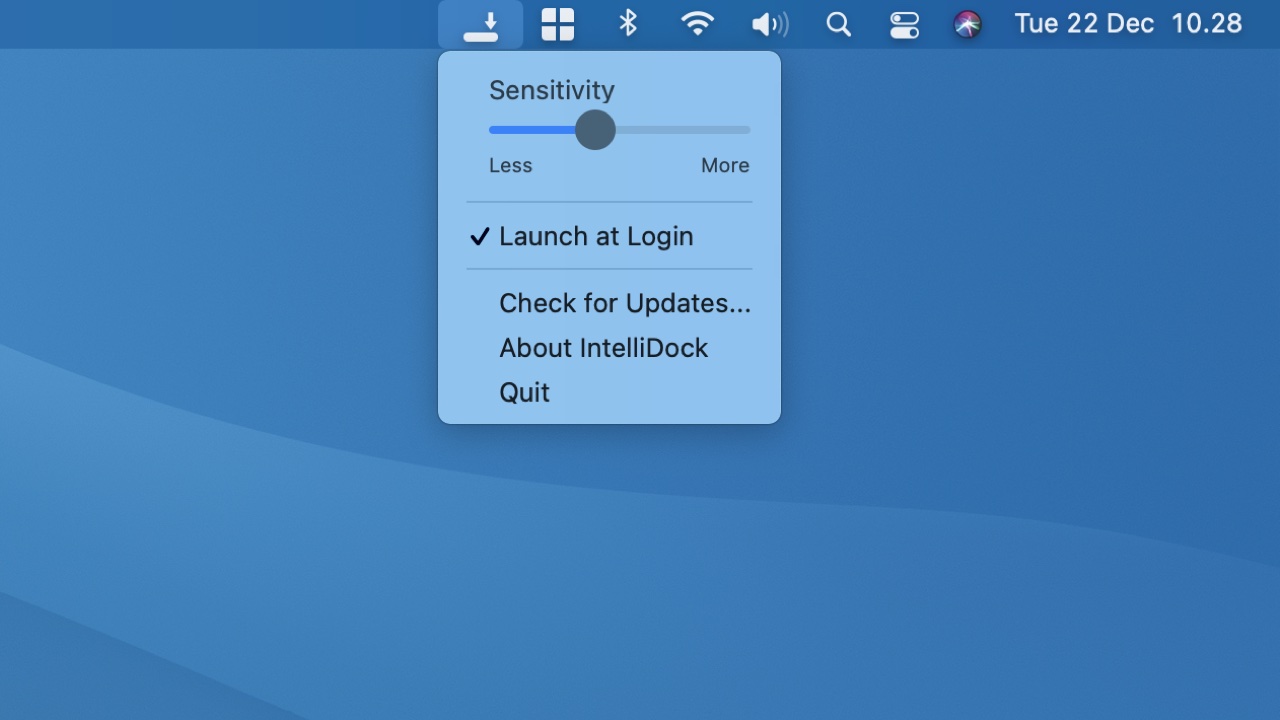
Open the app from your Applications folder. After that, you can manage IntelliDock from the menu bar at the top right. IntelliDock is the icon with the horizontal line and the downward arrow. Make sure IntelliDock launches automatically by checking Launch at Login.
You can adjust IntelliDock’s sensitivity via Sensitivity. This slider determines when the Dock disappears as a window approaches. With high sensitivity, the Dock hides even when windows are still a bit farther away. If you set it to the lowest value, Less, the Dock only disappears when a window actually overlaps the Dock area.
Conclusion
We’ve shown you how to install IntelliDock on your Mac, ensure it launches automatically, and how to configure it. Now you too can enjoy a Dock that gets out of the way whenever you need the extra space.